v2.1 — Latest Stable Release

Automate Your Gemini AI Prompts

Queue dozens of prompts and let them run automatically, one after another. Walk away. Come back to finished work. It's that simple.

Free to Use No Ads Manifest V3
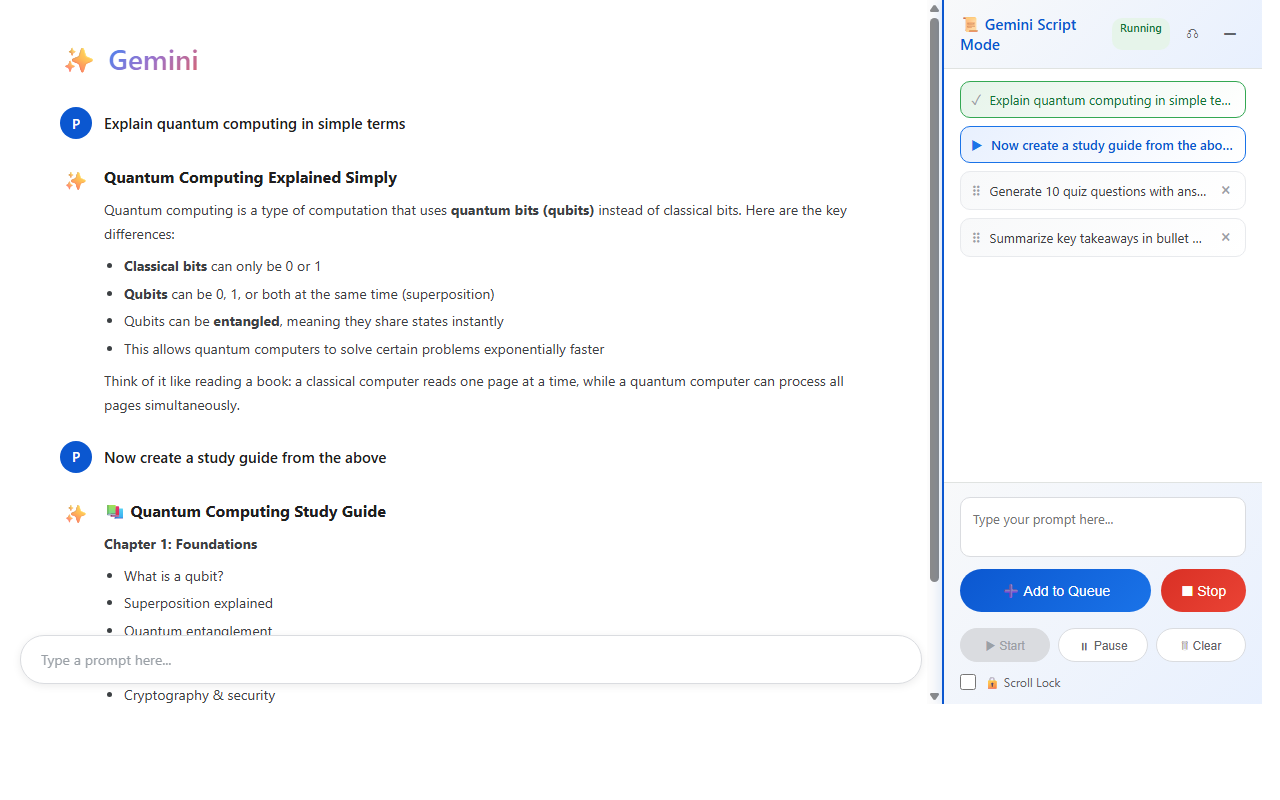
Gemini Script Mode docked alongside Gemini AI
Feature 1

Prompt Queue — Add Prompts, Hit Start, Walk Away

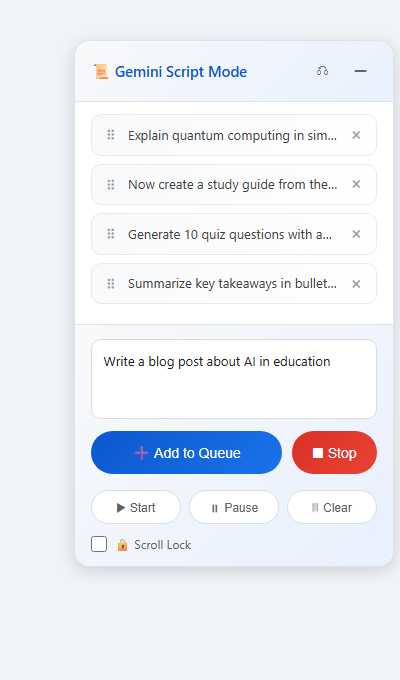
This is the core of the extension. Instead of typing one prompt, waiting for Gemini to finish, then typing the next — you queue up as many prompts as you want and let the extension send them one by one automatically.

  • 1. Type your prompt in the text box
  • 2. Click "Add to Queue" — it appears in the list above
  • 3. Repeat for as many prompts as you want
  • 4. Click "Start" — the extension sends them to Gemini one after another
  • 5. Each prompt waits until Gemini finishes the previous one before sending
Prompt Queue with 4 prompts queued and ready to start
Extension panel docked to the right side of Gemini
Feature 2

Dockable Panel — Float, Dock Left, or Dock Right

Click the ⎌ dock button in the panel header to cycle between three modes:

  • Float: The panel floats on top of Gemini. Drag it anywhere you like.
  • Dock Left: The panel snaps to the left edge. Gemini's content reflows to fit the remaining space — nothing is hidden.
  • Dock Right: Same thing, but on the right side. As shown in the screenshot — a true split-screen experience.

The Gemini website physically moves over to make room. It's not an overlay — it's a real screen split.

Feature 3

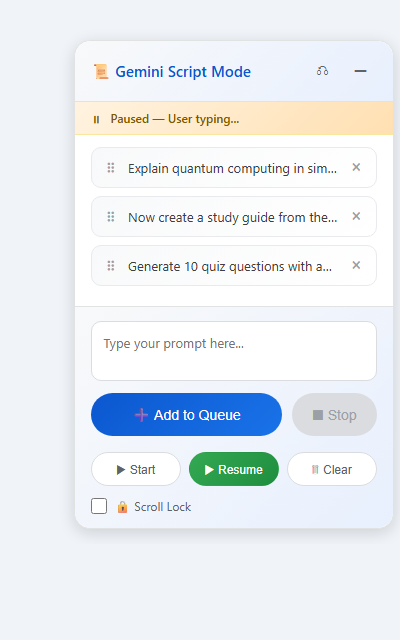
Smart Pause — Detects When You're Typing

What happens if you start typing in Gemini while the queue is running? The extension automatically pauses.

  • Detects typing in Gemini's input box and the extension's own text box
  • Shows a yellow status bar: "⏸ Paused — User typing..."
  • Waits 3 seconds after you stop typing before resuming
  • Zero conflicts — your typing is never interrupted by queue processing

You can toggle this on/off in the popup settings.

Smart pause status bar showing Paused — User typing
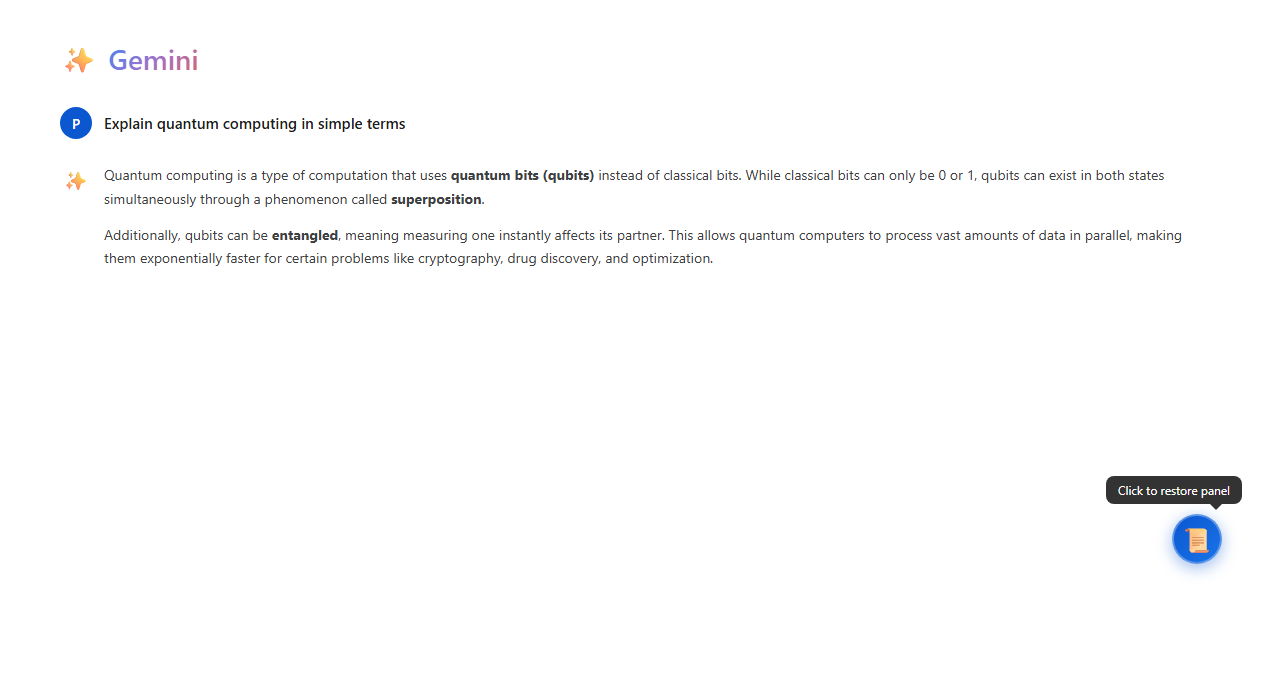
Minimized floating icon in bottom right corner of Gemini
Feature 4

Minimize to a Tiny Floating Icon

Don't need the panel right now? Click the ─ minimize button in the header.

  • The entire panel collapses into a small circular 📜 icon
  • Drag it anywhere on the screen — it stays where you put it
  • Click the icon to instantly restore the full panel
  • Completely non-intrusive — Gemini takes the full screen
Feature 5

Scroll Lock — Read Without Auto-Scroll Interruptions

Gemini auto-scrolls to the bottom every time it generates a new line. This is incredibly annoying when you're trying to read the response from the top.

  • Check the 🔒 Scroll Lock checkbox at the bottom of the panel
  • The page stays exactly where you are — no more jumping
  • Uncheck it anytime to let auto-scroll resume

This feature alone makes the extension worth installing. Every Gemini user has been annoyed by this.

Scroll Lock checkbox at the bottom of the panel
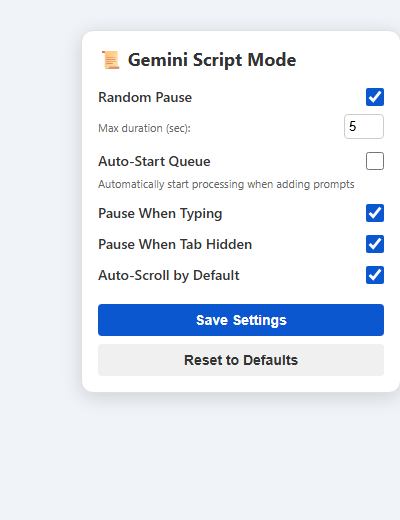
Extension popup with all settings toggles
Feature 6

Popup Settings — Fine-Tune Every Behavior

Click the extension icon in Chrome's toolbar to open the settings popup. Every safety feature can be toggled:

  • Random Pause: Add random delays between prompts (1–30 sec). Mimics human typing patterns.
  • Auto-Start Queue: Start processing the moment you add a prompt. No extra clicks.
  • Pause When Typing: Auto-pause when you type in Gemini or the extension.
  • Pause When Tab Hidden: Stop processing when you switch tabs. Prevents background activity flags.
  • Auto-Scroll: Enable or disable auto-scroll to the latest response by default.
Feature 7

Independent Window Instances

Open Gemini in 5 different tabs? Each tab gets its own independent Script Mode instance.

  • Each tab has its own queue — separate prompts, separate progress
  • Each tab has its own panel position — float in one, dock in another
  • No state sharing between tabs — completely isolated
  • Run multiple queues simultaneously across different conversations
One of many independent Script Mode instances running on a Gemini tab
Queue items with drag handles for reordering
Feature 8

Drag & Drop Queue Reordering

See the ⠿ drag handle on each queue item? Grab it and drag to reorder.

  • Changed your mind about the order? Just drag prompts up or down
  • Click the × button to remove individual prompts
  • Click "Clear" to wipe the entire queue at once
Installation Guide

Install in Under 60 Seconds

No store listing needed. Just download, unzip, and load. Four simple steps.

1

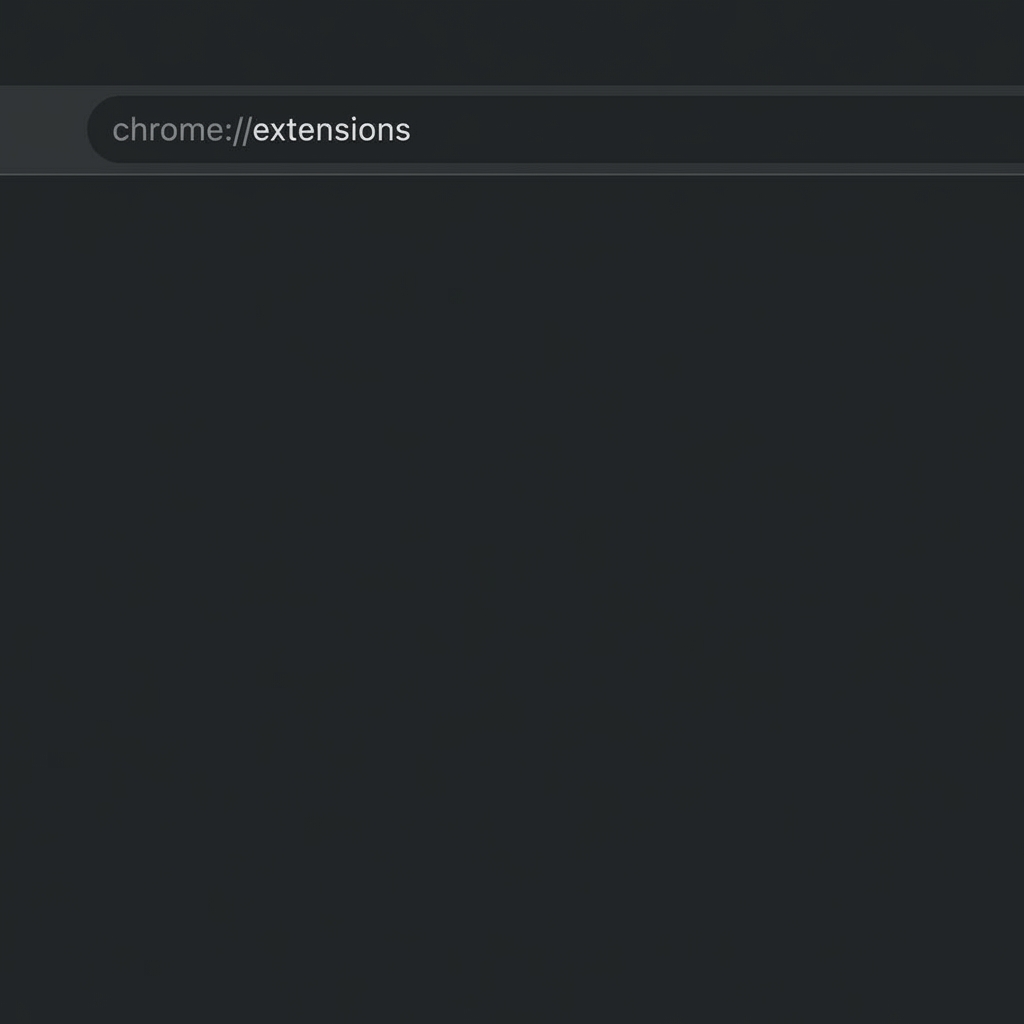
Open Chrome Extensions Page

Type chrome://extensions in your address bar and press Enter.

Chrome address bar showing chrome://extensions
2

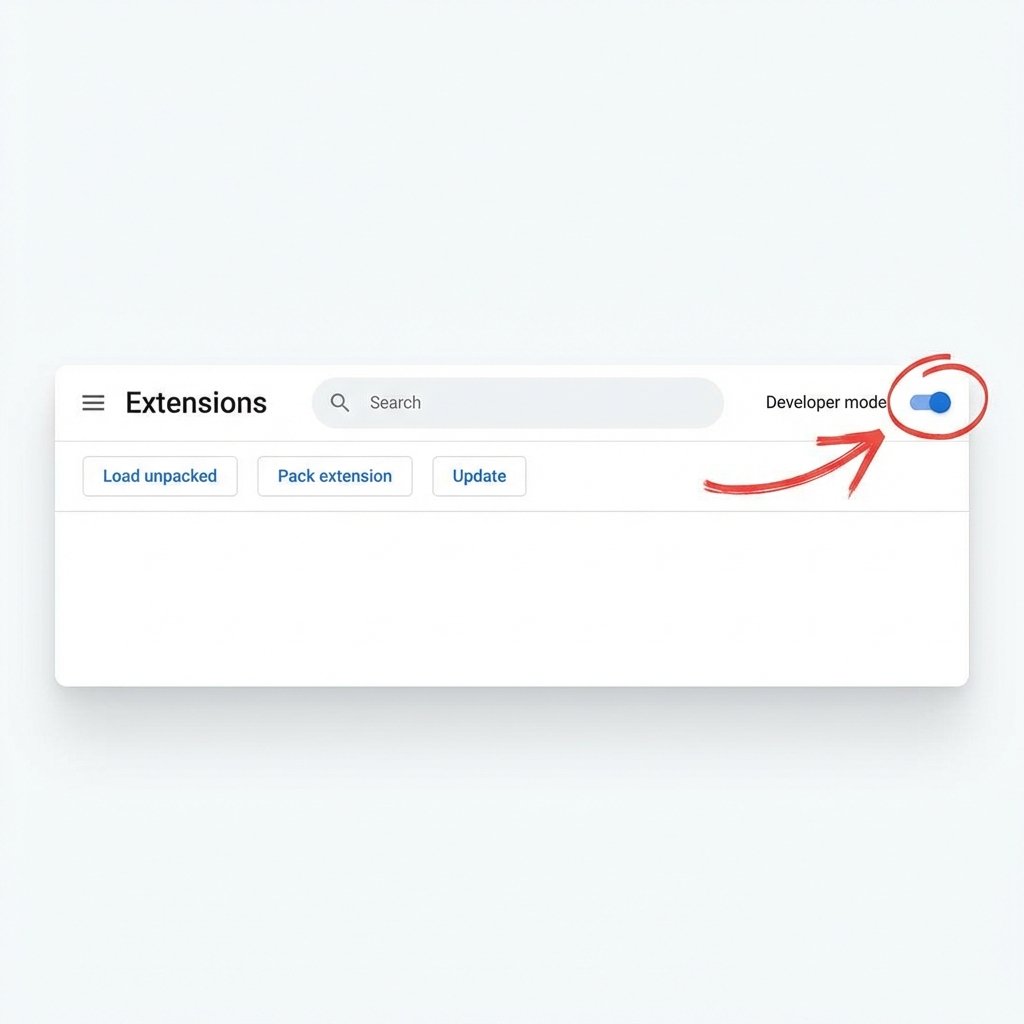
Enable Developer Mode

Find the "Developer mode" toggle in the top-right corner and turn it ON. This reveals the "Load unpacked" button.

Developer mode toggle turned ON with red arrow
3

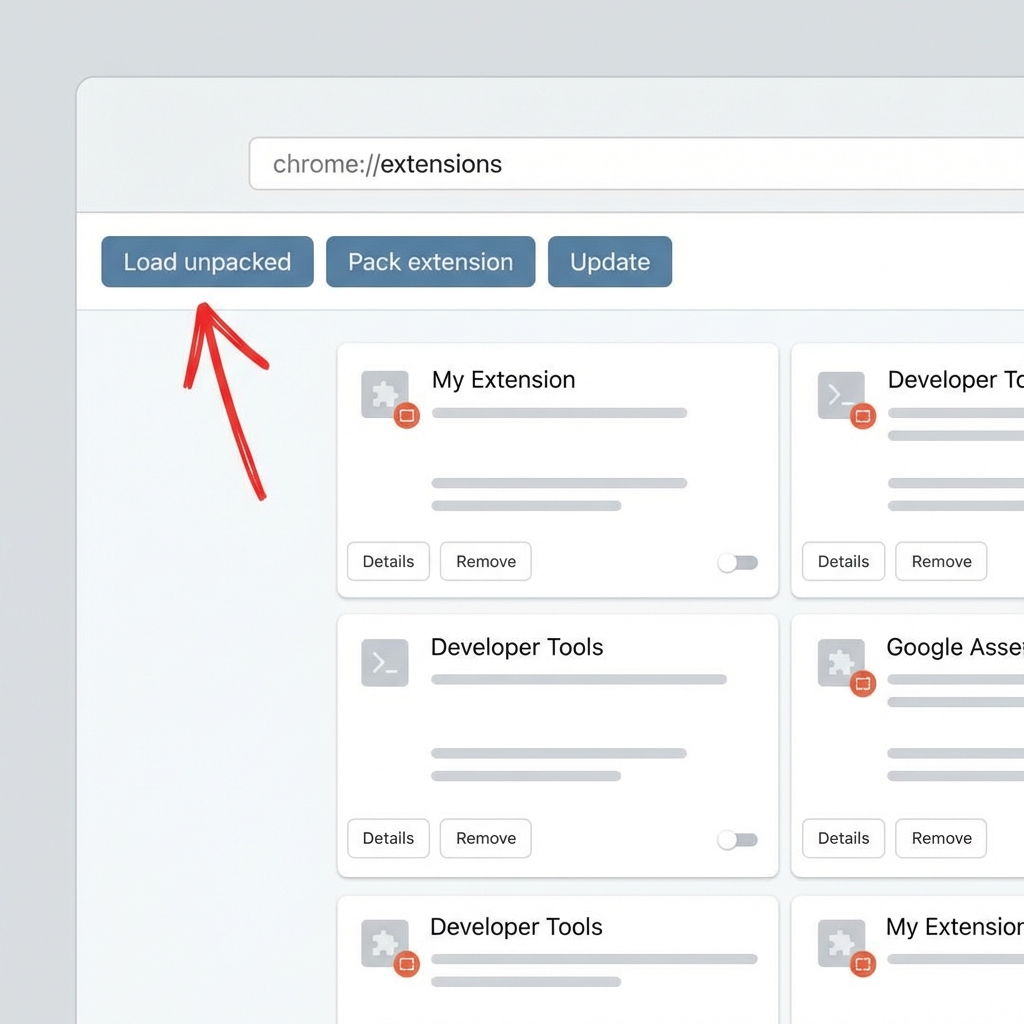
Click "Load Unpacked"

Click the "Load unpacked" button that appeared in the top-left after enabling Developer Mode.

Load unpacked button highlighted with red arrow
4

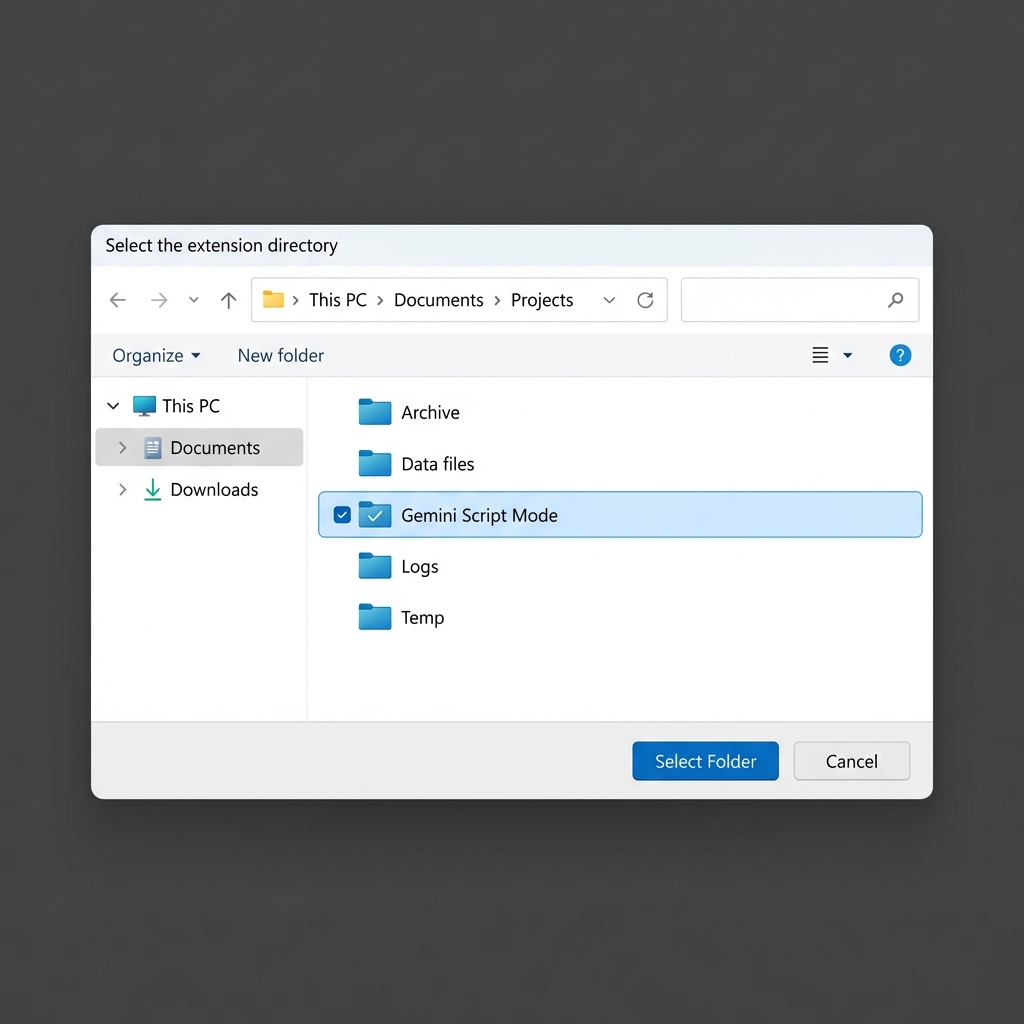
Select the Gemini Script Mode Folder

Navigate to where you unzipped the extension, select the "Gemini Script Mode" folder, and click "Select Folder". Done!

File picker with Gemini Script Mode folder selected

✅ That's it! Now open gemini.google.com and the Script Mode panel will appear automatically.

Ready to Automate Your Gemini Workflow?

Download the extension, install in 60 seconds, and start queuing prompts. Upgrade later if you want unlimited power.